USB 2.4G connection:
1. Switch the power button to ON to turn on the keyboard.
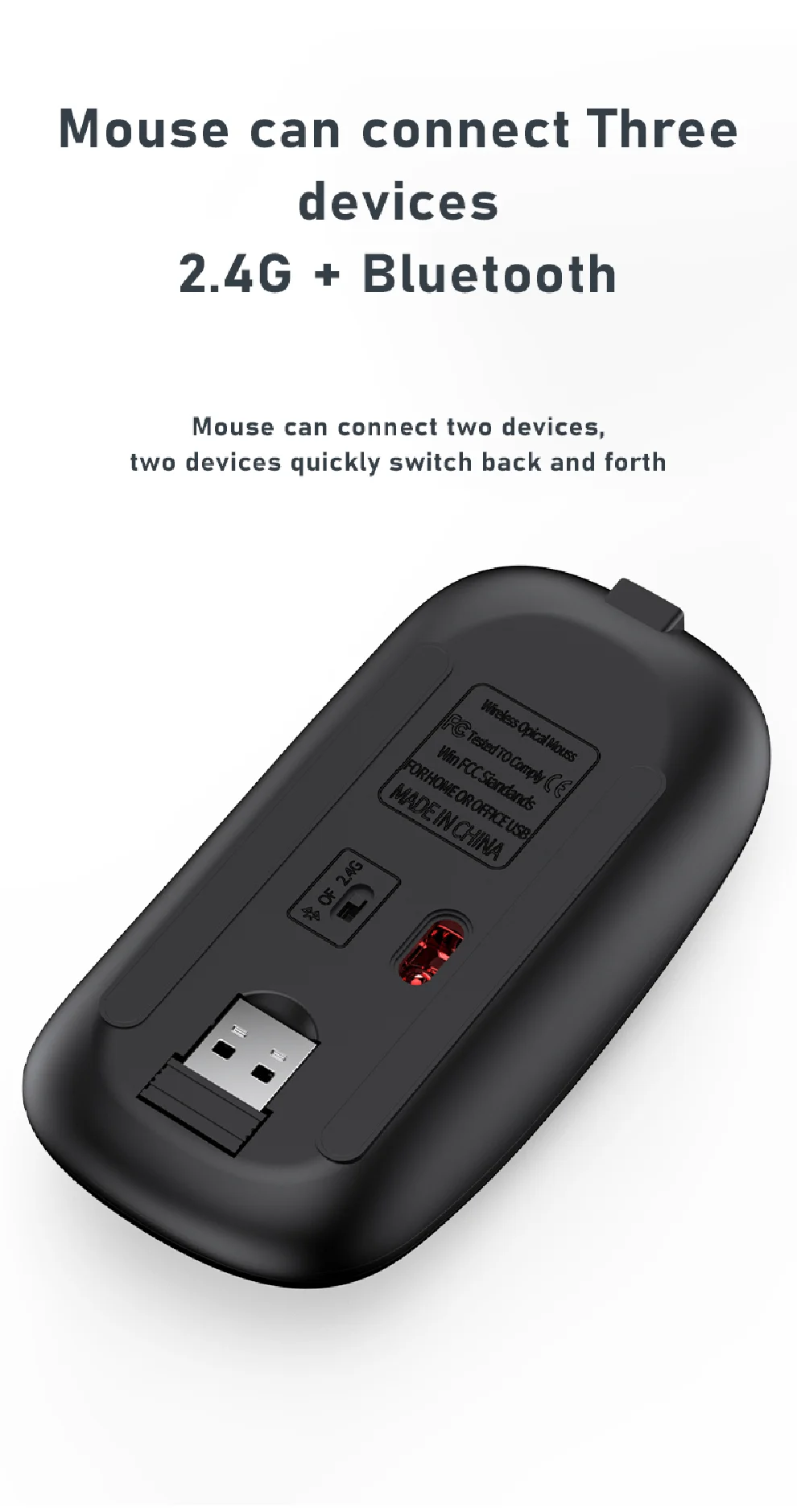
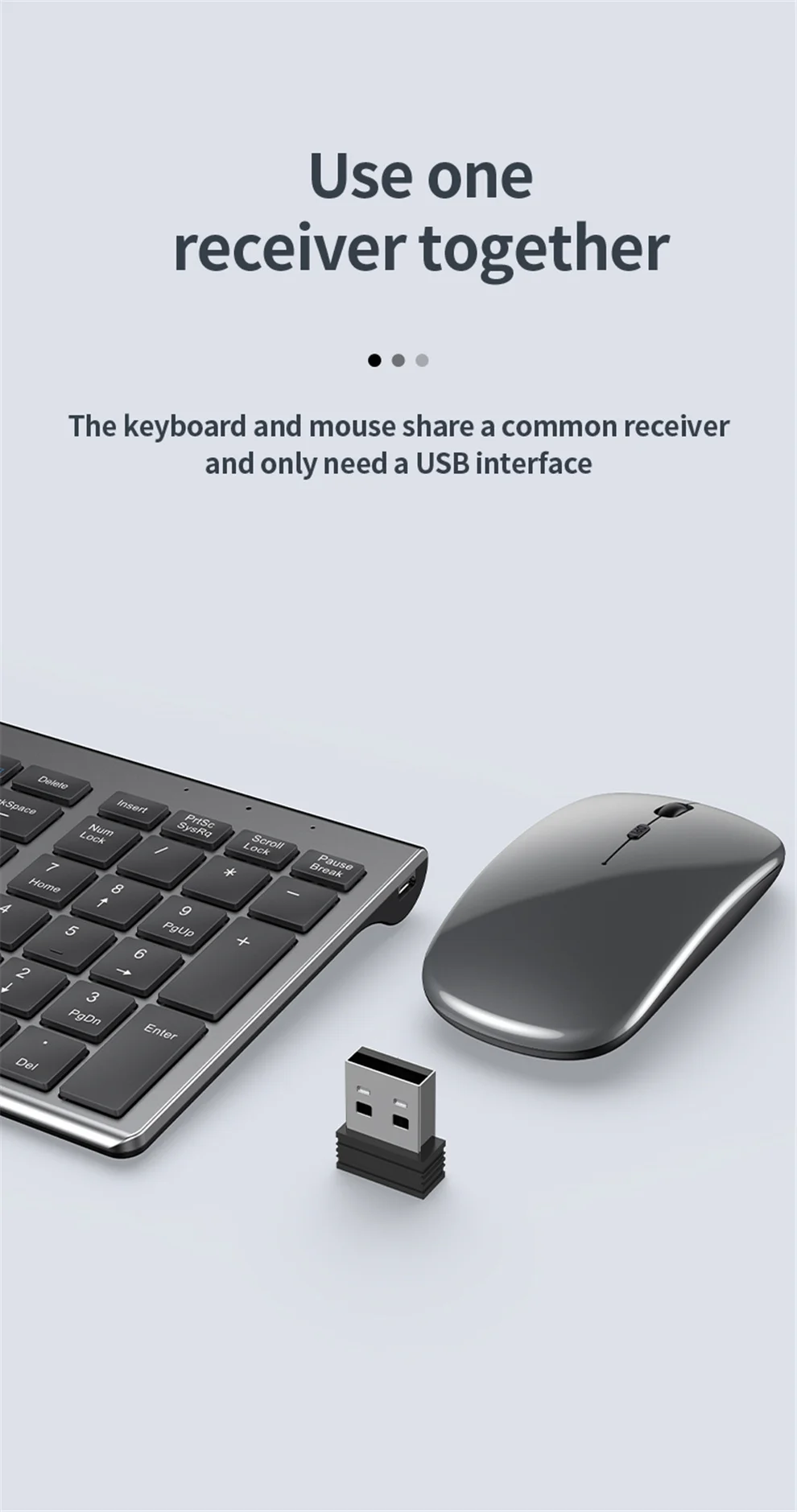
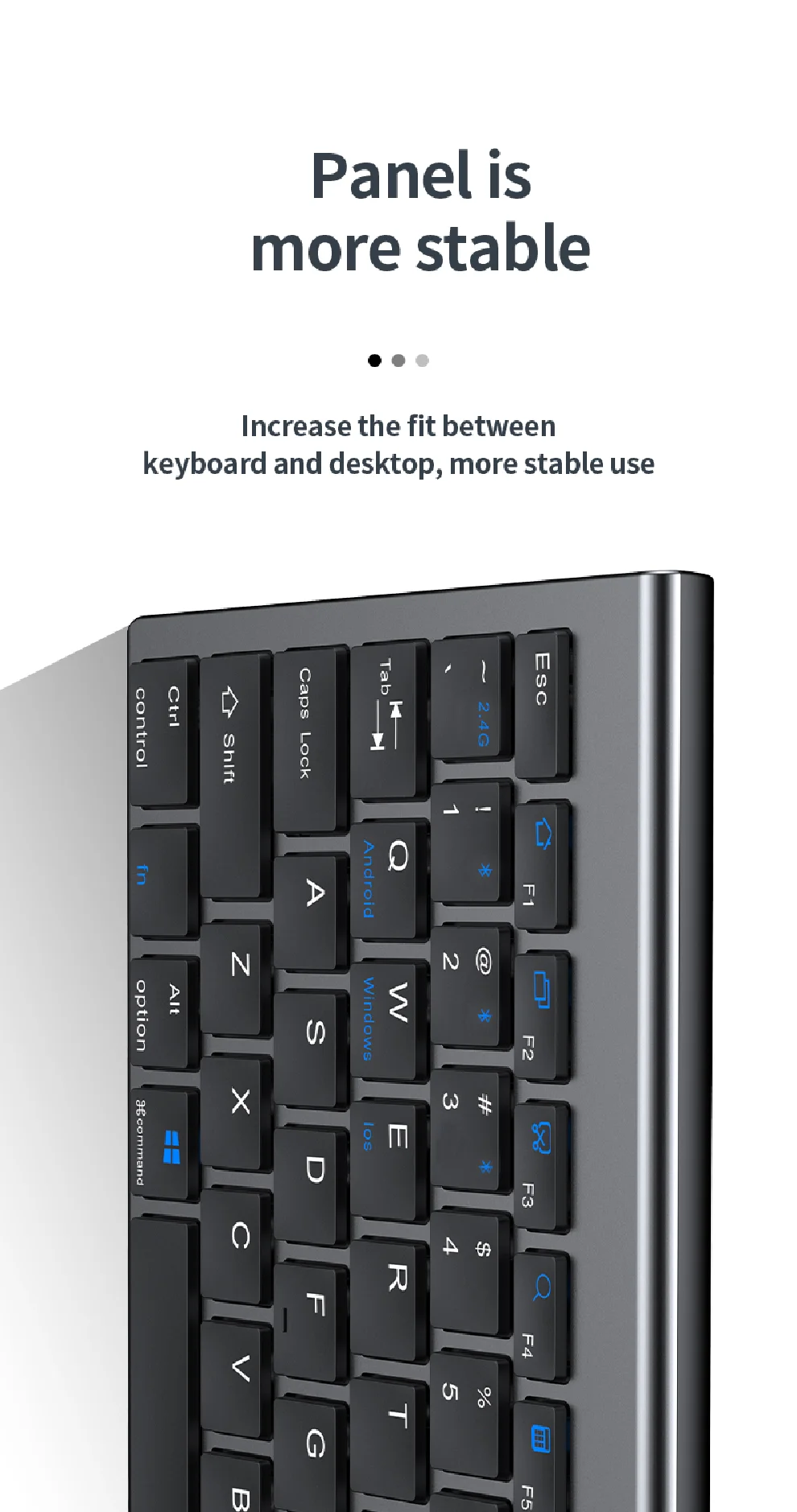
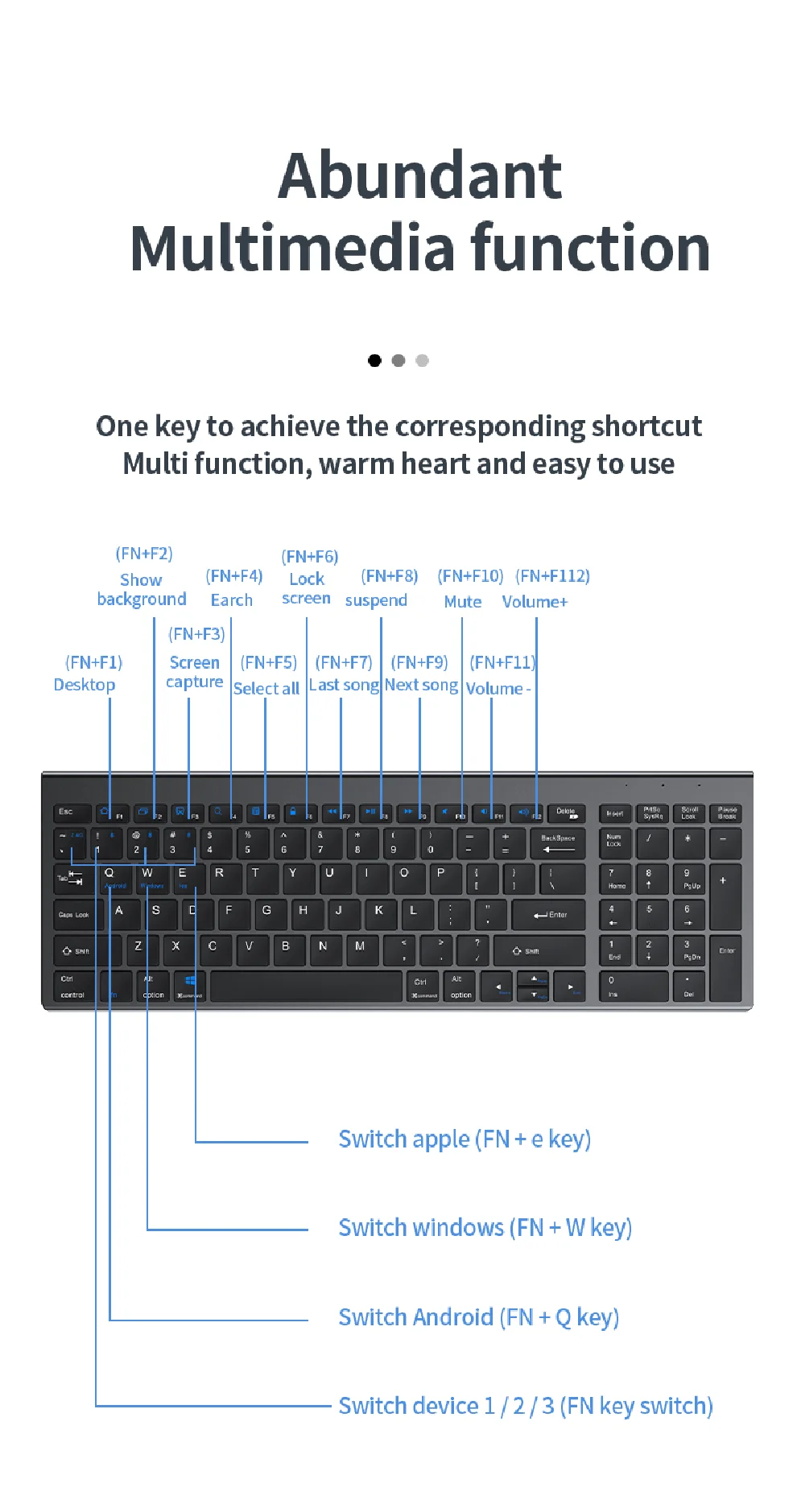
2. Insert the USB into the computer, then press and hold FN+~. The connection is successful.
Bluetooth connection:
1. Switch the power button to ON to turn on the keyboard.
2. Turn on your device’s Bluetooth to enter search mode (System Settings - turn on Bluetooth - search and add).
2. Press and hold FN+1, FN+2, or FN+3 on the keyboard. When the light flashes, the device will display "O50 keyboard BT". Click it to connect successfully.
Multi-device connection:
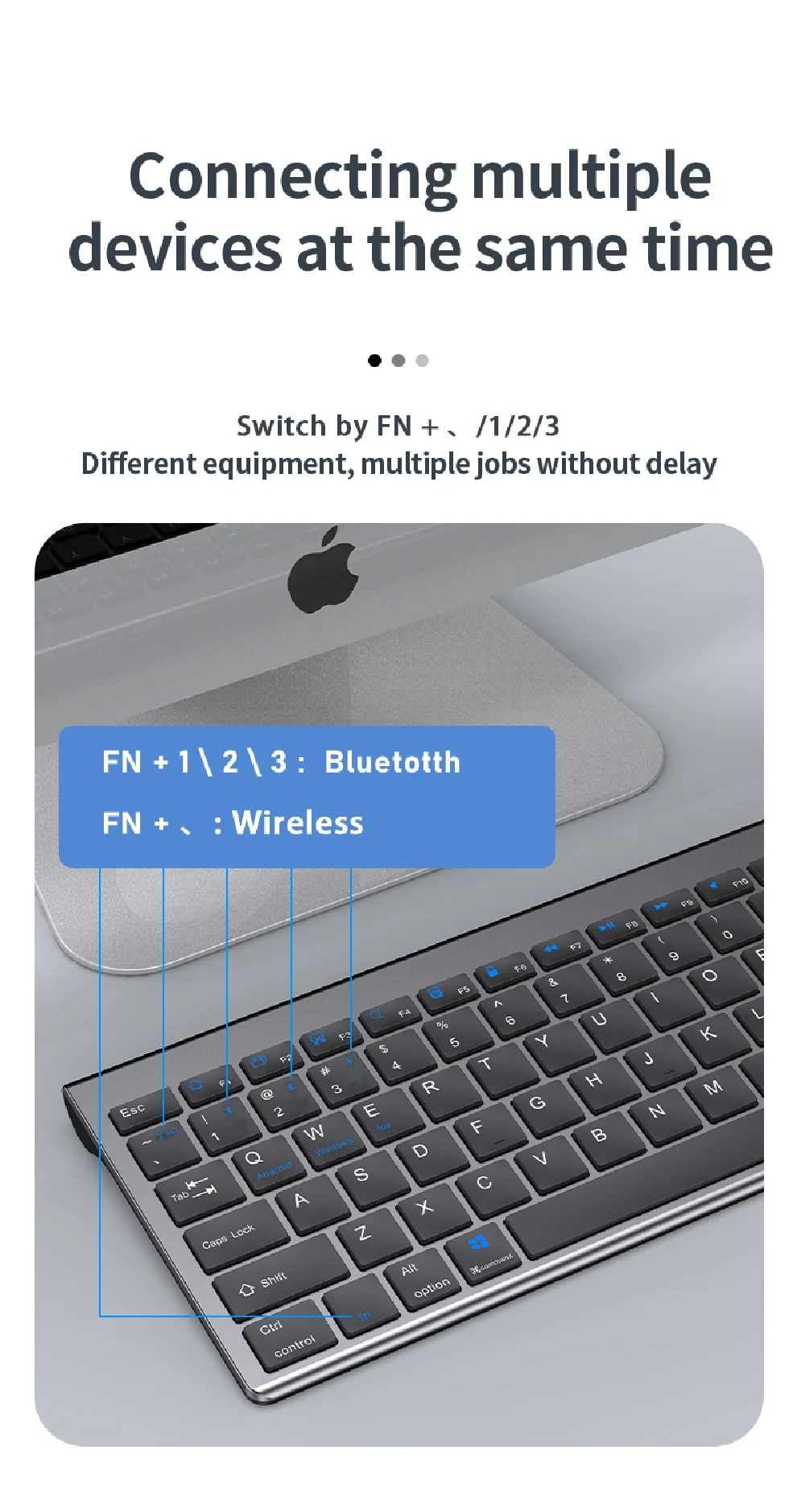
1. FN+1: connect to Bluetooth device 1.
2. FN+2: connect to Bluetooth device 2.
3. FN+3: connect to Bluetooth device 3.
4. FN+~: connect via USB, 2.4G wireless receiver.
5. Press FN+1/2/3/~ once to switch between paired devices.
6. FN+1/2/3: press and hold the combination for 3 seconds. When the light flashes, search mode starts (connect a new device).
Additional instructions:
1. For the first connection, switch the keyboard to the corresponding system.
2. Failure to switch may prevent the function keys from working properly.
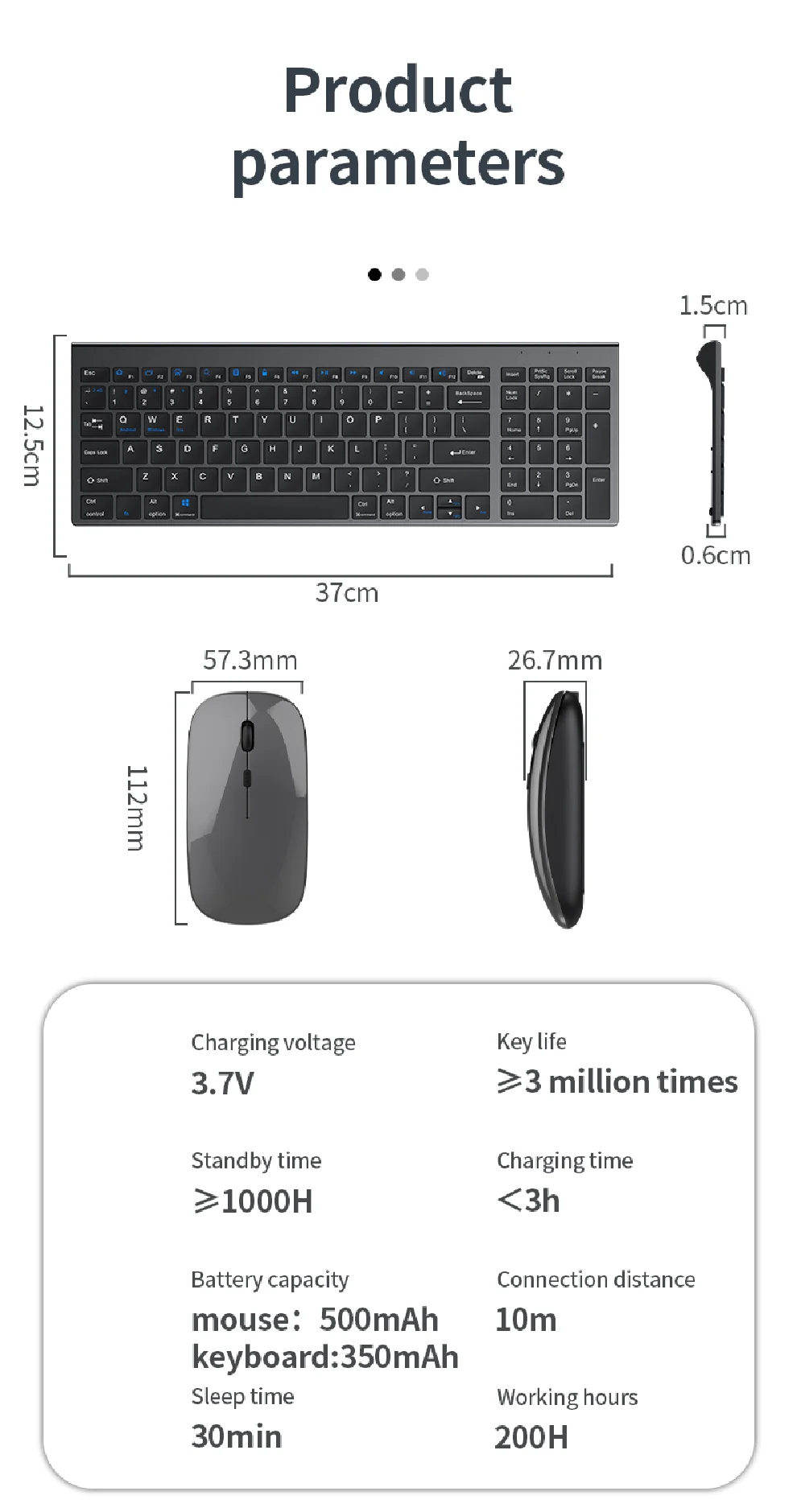
3. The keyboard range is 5–10 meters, and environmental factors and device differences may affect the distance.
Troubleshooting:
1. If the keyboard cannot be found, please turn on Bluetooth on the device and search again.
2. If the keyboard is turned on and no indicator light appears, try charging the keyboard.
3. After connecting to other devices, when returning to the original device, delete the old record before connecting.
4. When pairing fails, delete the failed pairing record, then perform the second pairing.